Getting Started
Prerequisites
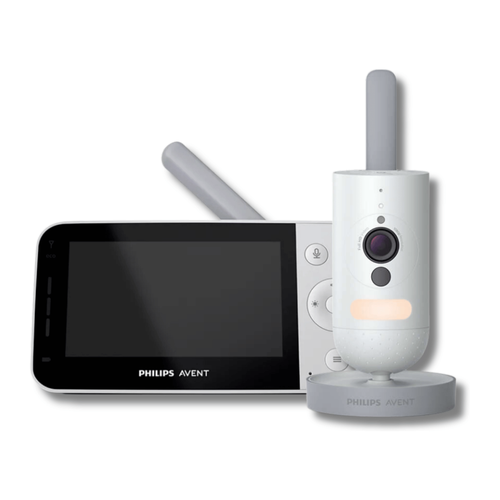
Before you can use this Homey app, you need:
- A Philips Avent connected baby monitor: one of the supported models below, set up and working in the official app.
- A Philips Avent Baby Monitor+ account: the account you use in the Philips Avent Baby Monitor+ app, with your monitor added to it. You'll need its e-mail address and password, and access to that mailbox for a verification code.
- Homey Pro: the app runs on Homey Pro only (not on Homey Cloud) and needs Homey version 12.7.0 or newer.
Supported monitors
The monitors come in three families, and the app treats each family a little differently. Once a monitor is added, its family is shown under Model in the device information.
| Family (shown as Model) | Models | Notes |
|---|---|---|
| SCD973 / SCD923 / SCD921 | SCD973, SCD923, SCD921 | Motion and sound alarms only arrive through the local connection. The SCD921 has had fewer tests than the others. |
| SCD951 / SCD953 | SCD951, SCD953 | |
| SenseIQ | Monitors with SenseIQ, including some SCD923 units | Also shows whether your baby is in the crib, the breathing rate and crying. |
The product id the cloud reports names the family, not the exact model, which is why an SCD923 can turn up in either the first or the SenseIQ family. Other Philips Avent connected monitors may work too, but haven't been tested with the app; their Model then shows as Unknown model.
This is an unofficial app, not made or supported by Philips. It talks to your monitor the same way the Philips Avent Baby Monitor+ app does. See Credits for how that works.
Installation Steps
Step 1: Install the app
- Navigate to the following URL: Philips Avent Baby Monitor | Homey
- Log in with your Homey account if prompted.
- Click the Install App button to add the app to your Homey.
Step 2: Verify installation (Optional)
You can confirm that the app was installed correctly before adding a monitor:
- In the Homey Mobile App:
- Go to More → Apps.
- Check that Philips Avent Baby Monitor appears in the list of installed apps.
- In the Homey Web App:
- Click the gear icon in the bottom-left corner to open Settings.
- Scroll down to the list of installed apps.
- Verify that Philips Avent Baby Monitor is listed there.
Step 3: Add your baby monitor
- Open the Homey Web App or Homey Mobile App.
- Go to the Devices pane.
- Click or tap the + (plus) button to add a new device.
- Search for and select Philips Avent Baby Monitor from the list of available apps.
- Choose Baby Monitor as the device type.
Step 4: Sign in
You sign in with your Philips Avent Baby Monitor+ account, in two steps.
- Fill in your e-mail address, password and country, then tap Send verification code.
- Pick the country you chose when you created the account. Homey suggests one based on its language, so check it before you continue. The country decides which Philips Avent (Tuya) data center your account lives in.
- Philips Avent e-mails a 6-digit verification code to your address. Enter it and tap Sign in.
- No e-mail? Check your spam folder, or tap Send a new code.
If the e-mail address or password is wrong, you'll see that right after the first step. A code that is wrong or expired is reported after the second step: request a new one and try again.
Step 5: Pick your monitors
After you signed in, the monitors on your account are listed. Select the ones you want to add to Homey and follow Homey's on-screen instructions to finish, assigning each monitor to its zone.
Step 6: Verify the device (Optional)
- Go to the Devices pane in the Homey app.
- Check that each monitor you added appears and shows the nursery temperature.
- Try the night light or play a lullaby to see that commands reach the monitor.
Step 7: Done
Your baby monitor is now available in Homey. You can:
- See the nursery temperature, and the motion and sound alarms. See Capabilities.
- Turn the night light on or off and play lullabies.
- Watch the camera from the device. See Live Video.
- Use it in Flows, for example to turn on a lamp when your baby makes a sound. See Flow Cards.